Petit Path Studio User Guide
Draw and edit paths, shapes, text, and images in your browser. Save a project to keep editing, or export PNG, SVG, or PDF for the web or print.
Getting started
Use an up-to-date version of Chrome or Edge on a desktop or laptop. A large screen makes it easier to select anchors and edit handles. Some touch devices can open the editor, but the workspace is designed for a computer.
Petit Path Studio runs without registration or installation. Your project files stay in your browser during editing, saving, and export. The app can fetch fonts and other resources as you work.
Basic workflow
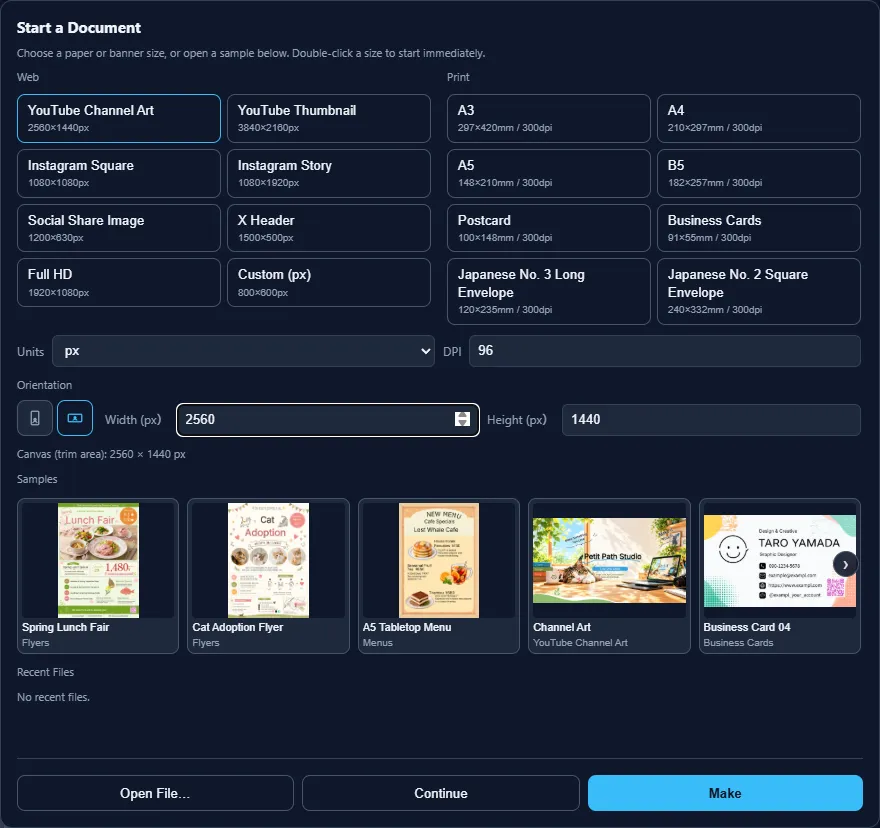
- Choose a size. Open File → New and select a paper, web, or banner preset. Double-click the size to create the document immediately. You can also open a sample or a recent file from this screen.
- Build the layout. Draw paths and shapes, add text or images, and organize your objects with layers. Adjust colors, strokes, and effects in the panels.
- Save and export. Save your working file as
.ppath. Export PNG, SVG, or PDF for sharing.
Creating or opening a project while your current document has content opens a new tab when a tab is available. You can also open a saved project from File → Recent Files. In browsers with file access support, the editor can try to reconnect to the file you saved previously.
Interface and drawing tools
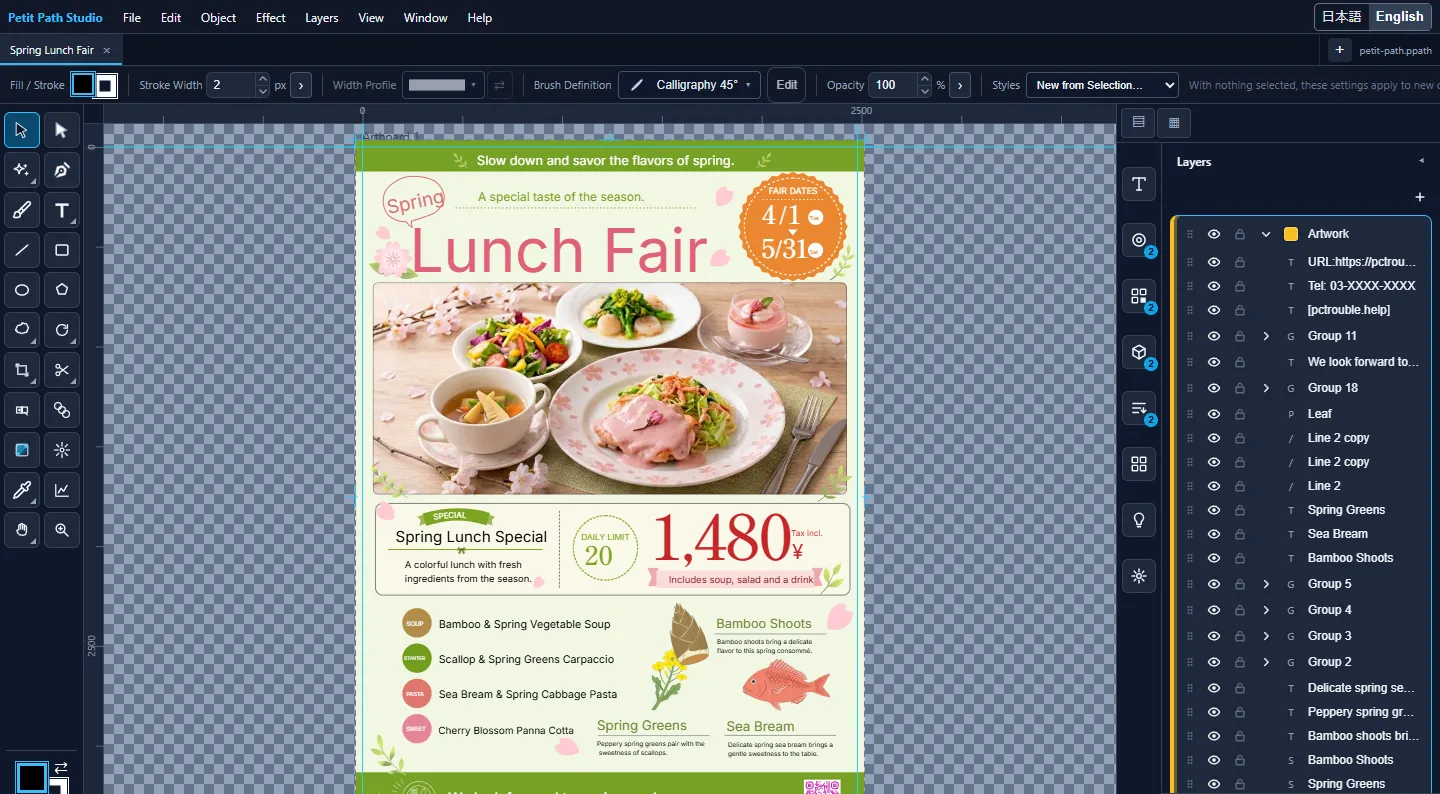
Tools
- Selection (V) moves, scales, or rotates objects.
- Direct Selection (A) moves individual anchor points and adjusts Bézier handles.
- Pen (P) adds anchors. Click for a corner or drag to pull out handles and shape a curve.
- Brush (B) draws freehand paths. The brush options control the stroke and the brush library includes watercolor styles.
- Shape tools draw rectangles, ellipses, polygons, and decorative shapes.
- Type (T) adds point text. Use area text for text inside a shape or text on a path to follow a curve.
- Hand (H), Rotate View (Shift+H), and Zoom (Z) change the view of the canvas.
Artboards, panels, and menus
- The center workspace contains the artboards. Use the Layers panel to reorder objects and to toggle visibility or locking.
- Use the Color and Appearance panels to adjust fill, stroke, opacity, gradients, and effects. Use the text controls to choose a font, size, alignment, and line spacing.
- Use Window to show or hide panels. The Object and Effect menus include alignment, path operations, and effects.
- Place images to include them in a drawing, trace an image to create paths, or import an SVG. Some effects in imported SVG files may render differently.
Moving around the canvas
Scroll to pan vertically and hold Shift while scrolling to pan horizontally. Hold Ctrl on Windows or Command on macOS while scrolling to zoom. Drag with Space held down to pan, or with Space and Shift held down to rotate the view. The view angle leaves the saved and exported artwork at its original orientation.
Saving and exporting
Editable projects
Choose Save or Save As to store layers, paths, text, and embedded images in a .ppath project. You can open the same file in Japanese or English. Chrome and Edge can save back to the same file after you grant permission. When file access is unavailable, the editor downloads a copy.
Export for web or print
- PNG saves a raster image. Check the artboard, output size, and background or transparency before saving. Use the multiple-size PNG option to export a set of sizes.
- SVG keeps vector content for compatible viewers and editors. Check the exported file in the app or browser where it will be used.
- PDF offers raster output, outlined text, and retained text options. Before sending the file to print, check the print provider’s requirements for page size, resolution, bleed, and crop marks.
Recovery data
When enabled, the editor keeps a separate recovery copy in this browser at the interval set in Preferences. Your saved project file is separate from this copy. Use File Handling in Preferences to turn recovery off on a shared computer.
Samples
Find editable samples on the startup screen, in File → New, and in the Samples panel available from Window. They include flyers, a tabletop menu, channel art, and business cards. The sample gallery opens the version that matches the editor language.
Opening a sample makes a copy. Choose Save As to keep your edits. To hide the samples, open Edit → Preferences → General and clear Show Samples.
Sample usage terms
You may use the included samples in personal and commercial work you create with Petit Path Studio. Do not extract the sample assets to redistribute or sell them as templates or asset collections.
Preferences
Open Edit → Preferences or use the shortcut shown in the menu.
- General contains smart guides, sample visibility, and the undo limit.
- View contains rulers, guides, anchor size, and notification placement.
- Display and Navigation controls the default wheel behavior.
- Tool Defaults sets the initial fill, stroke, and stroke width of new objects.
- File Handling controls whether recovery runs and how often it saves.
- Workspace manages panel layouts.
Keyboard shortcuts
Open Help → Keyboard Shortcuts for the full list. These shortcuts cover common tasks.
- V, A, P, B, T select Selection, Direct Selection, Pen, Brush, and Type.
- H, Shift+H, and Z select Hand, Rotate View, and Zoom.
- Ctrl+S saves. Use Command+S on macOS.
- Ctrl+Z and Ctrl+Shift+Z undo and redo. Use Command in place of Ctrl on macOS.
- Ctrl+K opens Preferences.
- Hold Space to pan temporarily, or add Shift to rotate the view.
The browser reserves shortcuts such as Ctrl+N and Ctrl+W for its own windows and tabs. Use the menu or the alternative shortcuts shown in the editor for creating and closing documents.
Frequently asked questions
Are my project files uploaded?
Your project files are edited, saved, and exported in your browser. The app may fetch resources such as fonts.
What happens when I open a sample?
The sample opens as a new editable document. Use Save As to keep your own .ppath file.
Can I use the included samples commercially?
Yes, in work you create with Petit Path Studio. Do not extract the sample assets to redistribute or sell them as templates or asset collections.
Why are my recent files missing?
The browser may have cleared its stored data, or you may not have saved the project yet. Check File → Recent Files and the list in the New Document dialog.
Why can’t I save back to the same file?
Chrome and Edge support saving back with file access permission. In other browsers, save a downloaded copy.
Can I hide the samples?
Yes. Open Edit → Preferences → General, clear Show Samples, and choose OK.
Can brushes or watercolor strokes look different after an update?
Yes. Brush shapes and watercolor textures can change slightly when the editor is updated. Saved projects render with the current version when you reopen them.