Know what to look for
Each pattern includes a short guide. Check at your own pace, pause whenever you need, and revisit any pattern.
See it. Mark it. Explain it.
Check your display.
Keep a clear record.
Use 15 static patterns to look for pixel issues, uneven areas, and line distortion. Mark what you see and save a report to share with your display manufacturer.
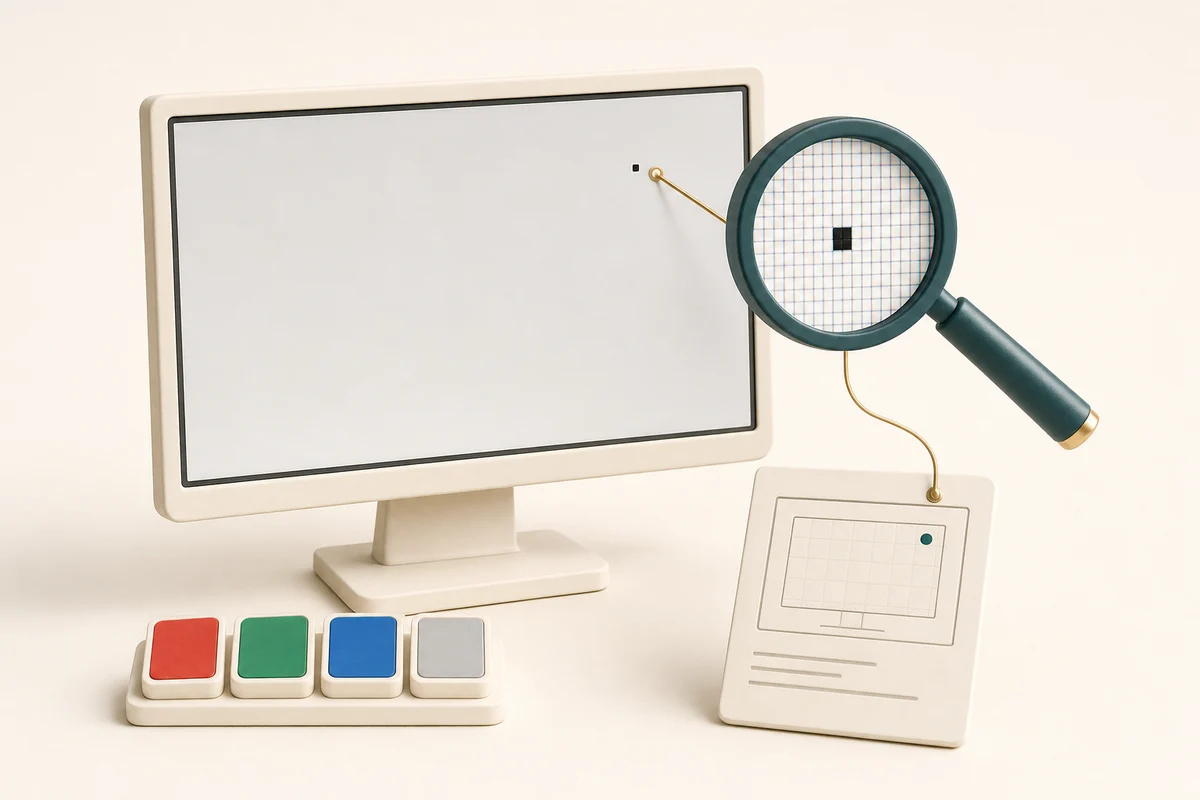
From a vague symptom to a useful support request
A mark on the screen is easier to discuss when you can describe where it appears and under which test color.
Each pattern includes a short guide. Check at your own pace, pause whenever you need, and revisit any pattern.
Click or tap to add a numbered marker. Record dark dots, bright dots, uneven areas, or other observations.
Combine locations, displayed RGB values, device details, and your own photos. Save PDF, HTML with images, or text.
Static patterns. No flashing.

White, black, red, green, blue
Look for dark dots on white, bright dots on black, and unexpected colors on RGB backgrounds. Check the same location with several colors.

Three gray levels
Compare the center and edges for patches, bands, tint differences, or uneven brightness. Room lighting can change what you see.
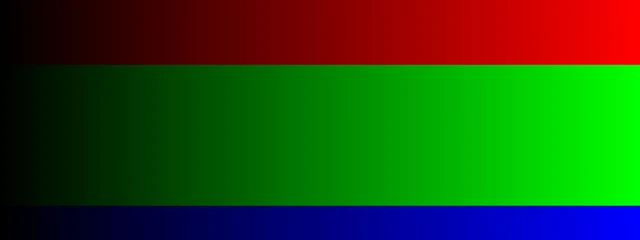
Four patterns
Look for abrupt bands in gradients and compare nine shadow or highlight steps. These checks do not calibrate your display.
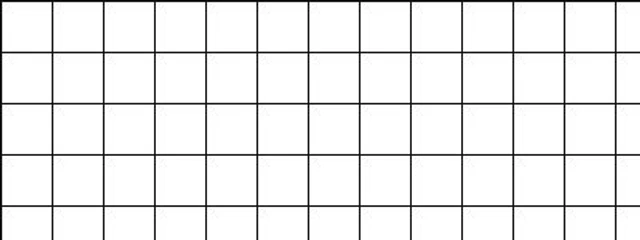
Three patterns
Compare line spacing and look for unusual gaps or distortion. Browser zoom and display scaling may also cause visible artifacts.
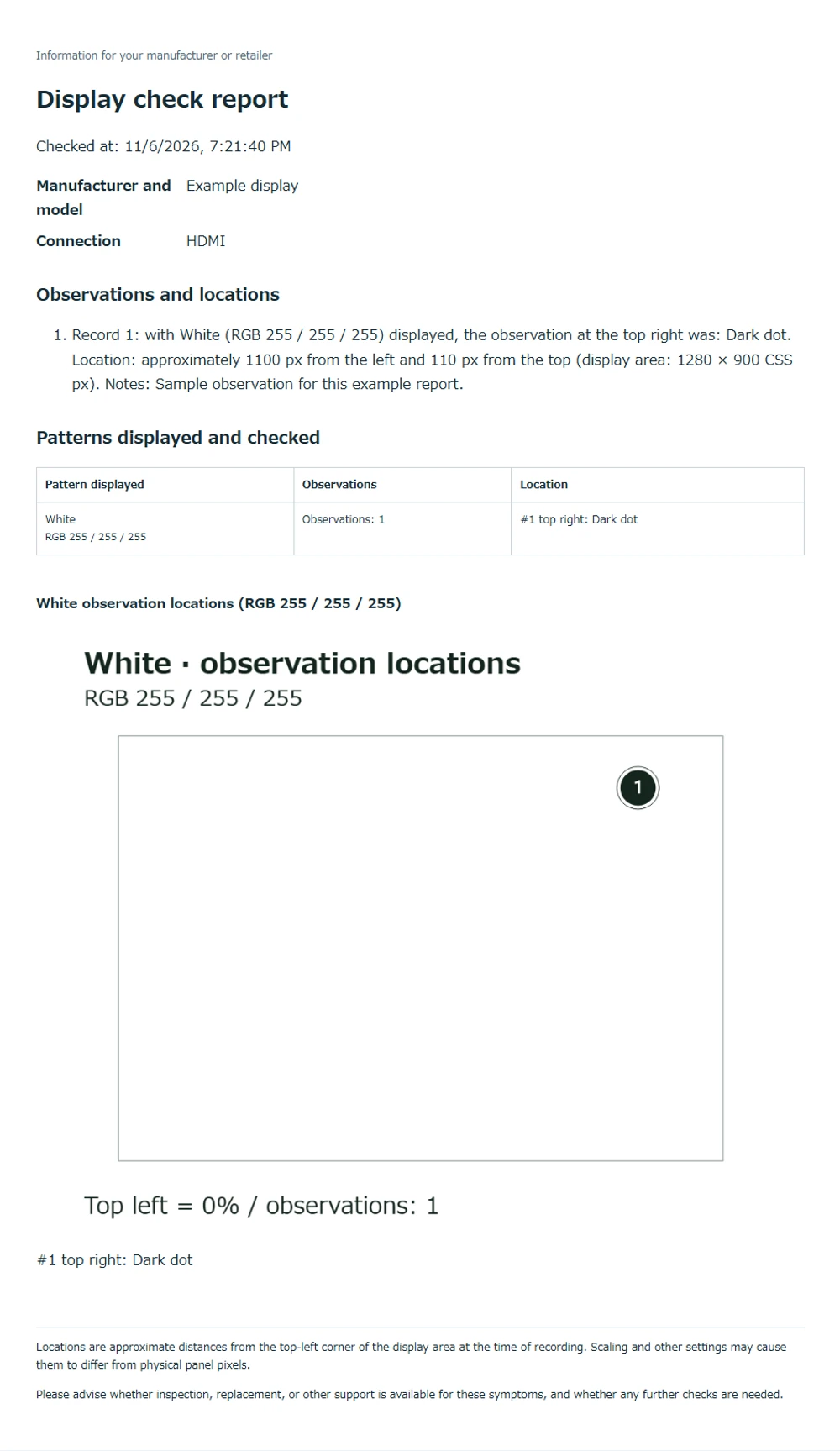
For your next support request
“There is a dark dot near the top right when white is displayed.” Keep that description together with a location map and your own photos.
Print to PDF, or save HTML or text
You can also copy the support message or save a location map as PNG.
The map shows where you placed a marker. It does not capture the physical panel. Attach your own photo to show a visible issue; browser coordinates may differ from physical panel pixels.
Three steps
Start the app and choose a color or pattern. Use fullscreen for a larger view, or continue within your browser if fullscreen is unavailable.
Follow the on-screen guide. Click or tap anything unusual, select an observation type, then choose Checked — next. Press H to hide the guide and Esc to pause.
View your results and create a support report. Add your display model and photos if helpful, then print to PDF or save HTML or text. Send the report to your support provider yourself.
Compare a new monitor, revisit an area you noticed, or prepare information for a support request.
The app does not upload your notes or photos. Inspection data stays in memory on the current page. Save your report before closing or reloading.
The tool does not certify that a display is fault-free, measure color accuracy, repair pixels, or decide warranty eligibility. Ask your manufacturer about its policies.
This tool focuses on visible display patterns. The broader PC troubleshooting tool (Japanese) covers other symptoms. A black pattern here cannot repair a computer with no image.
No. You visually inspect the display and record what you notice. The tool cannot confirm a hardware fault, repair pixels, or determine whether you qualify for a replacement.
A dead pixel may appear dark on a bright background. A stuck pixel or subpixel may stay lit or show an unexpected color. Compare the same location across white, black, and RGB patterns; visual appearance alone does not establish the cause.
No. This app requires a working browser and a display you can already see. Its black pattern helps you look for bright dots and uneven areas; it does not recover a computer that will not display an image.
Press Esc or choose Pause and return. View results also ends the test. If fullscreen is unavailable, choose Continue in browser. Browser controls and operating-system notifications may remain visible.
No. These are static patterns for visual comparison. Room lighting, scaling, HDR, color management, and display settings affect their appearance. Accurate physical measurements require suitable equipment.
No. Observations and photos are processed in your browser and kept only on the current page. Save your report before reloading or closing the tab. Only a manually selected language and the theme preference are saved as settings.
Yes. Open the app on the display you want to inspect and tap to mark locations. Fullscreen availability varies by device and browser. Locations refer to the browser display area and may not match physical panel pixels.
It is free and requires no registration or installation. Switching between Japanese and English within the app preserves your observations and settings. Reloading the page clears the inspection data.
A clearer picture for your next support request.
Open the app, choose your view, and check at your own pace.
Start Monitor TestFullscreen starts only when you choose to begin the test.