Check the key that concerns you
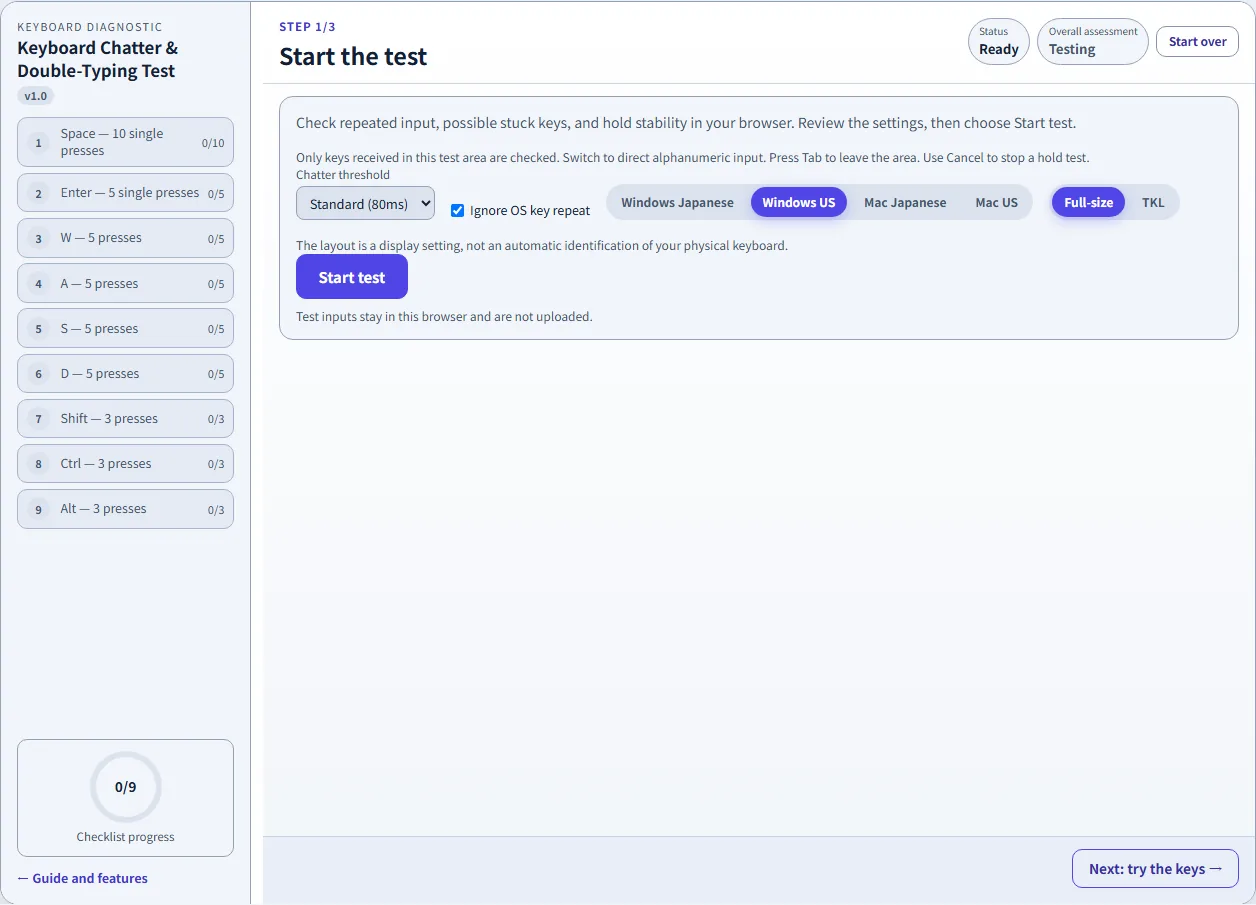
Try a single suspect key or follow the checklist to check Space, Enter, W, A, S, D, Shift, Ctrl, and Alt.
One press. More than one input?
Press once.
See what arrives.
Check double typing, possible stuck keys, and key hold stability. Test the inputs your browser receives from Windows and Mac keyboards, then keep a useful record.
Before repair or replacement
A letter appears twice after one press. A game seems to receive repeated input. A held key seems to release. Try deliberate actions and compare them with the events received by the page.
Try a single suspect key or follow the checklist to check Space, Enter, W, A, S, D, Shift, Ctrl, and Alt.
Try another connection or device and review settings. This is a record of browser events, not proof of a hardware fault.
Copy your observations before closing the page. They can help explain an intermittent symptom when asking for support or checking a used keyboard.
Keys, intervals, and holds
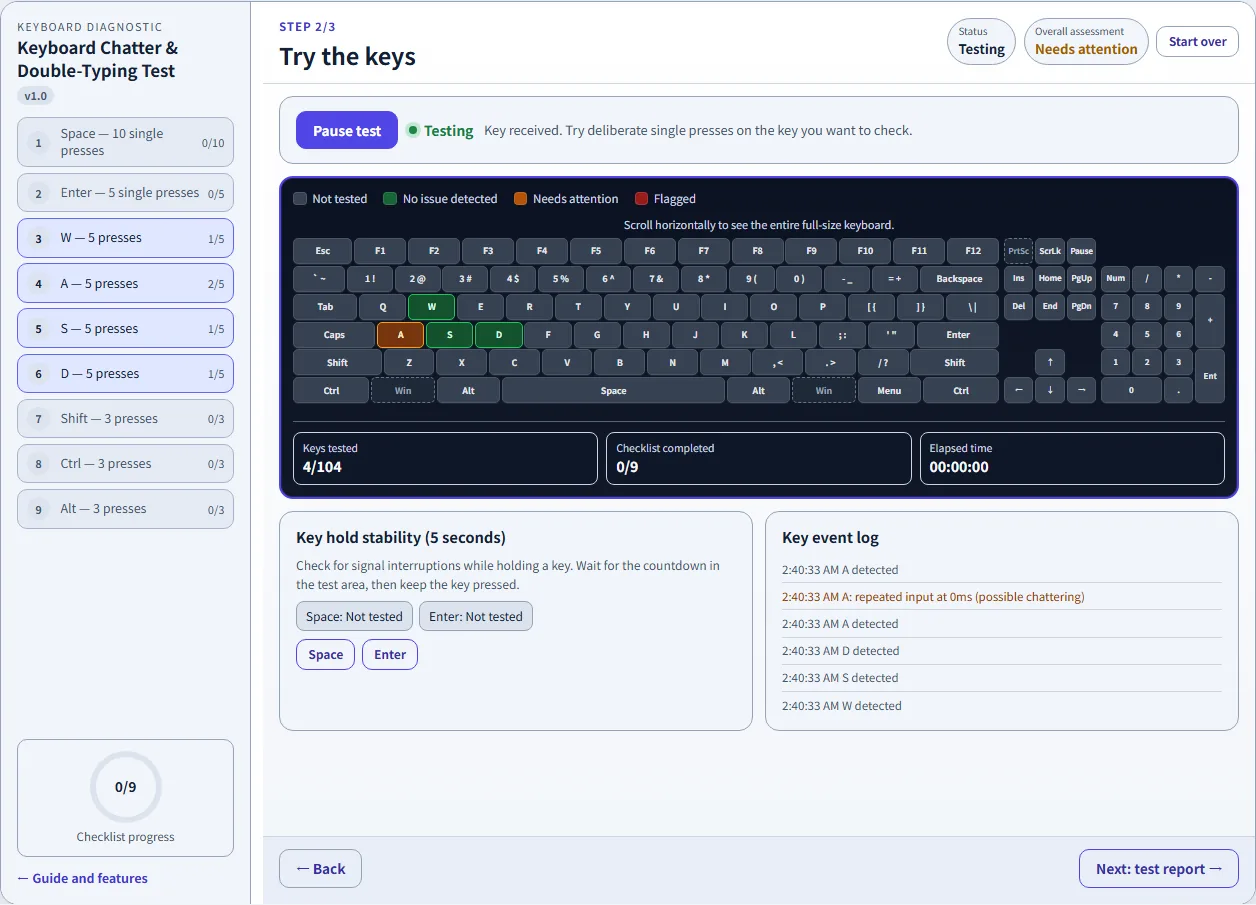
Review the interval between presses of the same key. Adjust the threshold to compare observations without treating every short interval as a defect.
Leave repeat filtering on for deliberate single presses. Holding a key normally triggers OS repeat; it is different from unintended repeated typing.
See which keys remain reported as pressed. A state lasting more than ten seconds is flagged for attention.
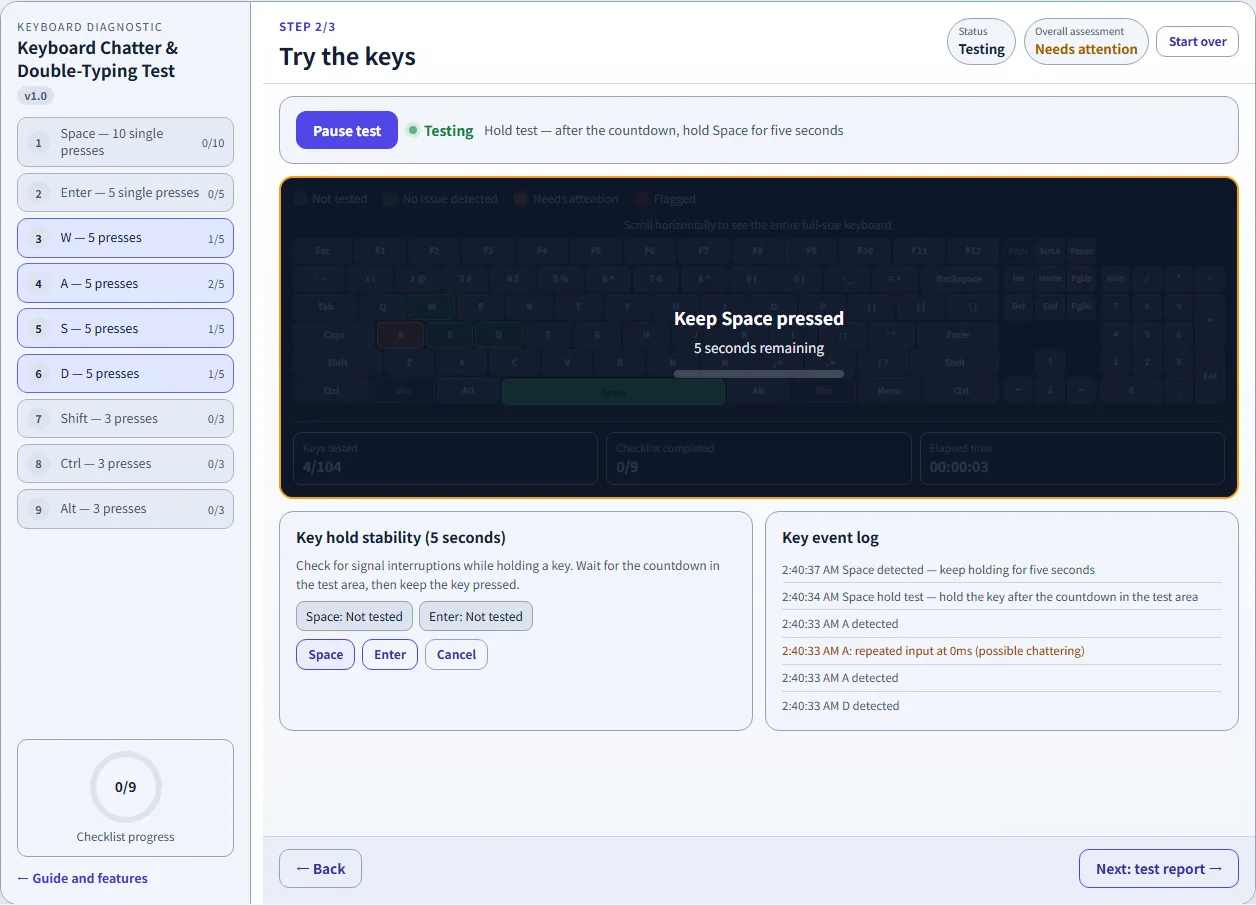
Check Space and Enter after a three-second countdown. Review stable holds and signal interruptions, and cancel at any time.
Choose Japanese or US layouts for either platform. Change the display without changing your physical keyboard or system settings.
Include or hide the numeric keypad in the displayed layout. Scroll the keyboard horizontally on a narrow screen.
See flagged keys change color as possible chatter events accumulate. Use the log to compare those events with your own actions.
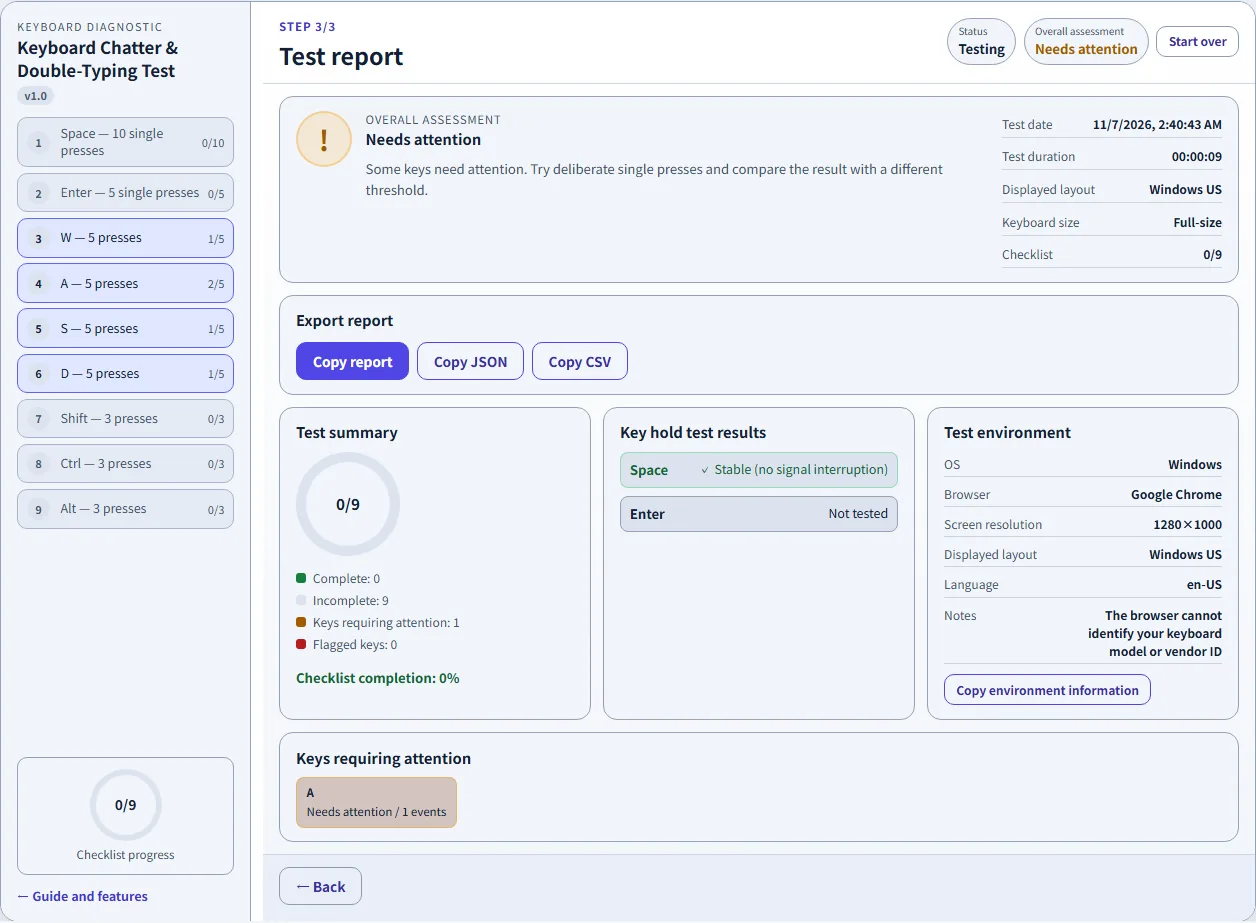
Review the nine-item checklist, individual keys, hold results, and environment. Copy text, JSON, or CSV to keep a record.
Three steps
Choose the displayed layout and size, review the chatter threshold, and leave Ignore OS key repeat on for single-press checks. Switch out of IME composition to direct alphanumeric input, then choose Start test.
Keep focus in the test area and press each key deliberately. Follow the nine-item checklist and review the event log and heatmap. For Space or Enter, start a hold test, wait for the countdown, and keep the requested key pressed for five seconds.
Open the test report to review flagged keys, checklist completion, hold results, and the test environment. Copy a text, JSON, or CSV report before reloading or closing the page. You can return to the test or start over.
Know what is repeating
Hold a letter down and the operating system normally repeats it. The browser marks those keydown events as repeat. The default setting excludes them from the normal interval check.
Repeated keydown events close together can be flagged when you intended a single press. The tool uses the selected threshold, not a direct measurement of the switch contacts.
Very fast intentional presses, repeat settings, and input software can affect results. Change one setting at a time and compare the result with what you actually did.
Layouts and browser limits
Choose Windows or Mac, Japanese or US, and full-size or TKL. The display is a guide, not proof of a detected physical layout. Your manual choices stay separate from the interface language.
Use direct alphanumeric input rather than IME composition. Print Screen, system keys, language keys, and reserved shortcuts can behave differently across environments. Click the test area to restore focus. Press Tab to move out; use Cancel to stop a hold test.
Useful answers
Keyboard chattering describes repeated inputs when you intended to press a key once. This tool flags consecutive keydown events for the same key when their interval is below the selected 40ms, 80ms, or 150ms threshold. The default is 80ms. A flag describes browser input and does not confirm a faulty switch.
Repeated typing can have several causes, including a switch problem, input settings, or software. Try deliberate single presses, leave Ignore OS key repeat on, and compare another connection or device. Intentional fast presses can also fall below the threshold. The tool does not repair your keyboard or identify every cause.
Start a test and compare the pressed-key display with your actions. A key reported as pressed for more than ten seconds is flagged as possibly stuck. This can also happen if a keyup event does not reach the page. Use the separate Space or Enter hold test to check continuity over five seconds.
Yes. It checks keyboard events received by the browser, including events from mechanical keyboards. It does not identify the switch type, measure true hardware response time, or decide whether a switch needs replacement.
Yes. You can choose Mac Japanese or Mac US, alongside Windows Japanese and Windows US. These options change the displayed layout. The browser cannot fully identify your physical keyboard, and some operating-system shortcuts may not reach the page.
Yes. Choose the layout that matches the keyboard and operating-system settings you are checking, and choose full-size or TKL. Your explicit layout and size choices are saved separately from the interface language. Switching languages does not change them. The first English session suggests Windows US; it is not an automatic layout detection.
OS key repeat normally generates repeated keydown events while a key stays held. Chattering describes unintended repeated input from a single intended press. Ignore OS key repeat is on by default and excludes events marked as repeat by the browser from the normal key-count and interval checks. Turning it off includes those events and may create additional flags.
The page can only inspect events it receives while the test area has focus. IME composition, Print Screen, language keys, system keys, and OS or browser shortcuts may behave differently across environments. Switch to direct alphanumeric input and click the test area again. A missing event alone does not prove a broken key. Press Tab to leave the area; the Cancel button stops a hold test.
Use the separate N-key rollover checker for simultaneous-key checks. Keyboard ghosting and rollover concern combinations of keys and differ from repeated input on one key. The linked rollover guide is currently in Japanese; it is not part of this English diagnostic tool.
Yes. Copy report, Copy JSON, and Copy CSV place the selected report on your clipboard; they do not download a file automatically. Paste it into a document or file to keep it. Copy environment information is available separately. Technical key codes and JSON property names stay unchanged between languages. Reloading clears the diagnostic record.
No. Diagnostic events and results are processed on this page and are not uploaded or automatically saved as an input history. Only manually chosen language, theme, layout, and size settings are saved as preferences. The test does not read passwords, other applications, or input on other websites.
Checking combinations of keys? Open the N-key rollover guide (Japanese).
A useful record, without an account
Open the test, choose the layout, and begin with a few deliberate presses.
Test your keyboard