Try one action at a time
Start with deliberate single clicks. Review short intervals alongside your own actions rather than treating every flag as a defect.
One click. Two responses?
Check the input.
Understand the response.
Test mouse buttons, unintended double-clicks, wheel input, and assigned side buttons in your browser. Keep a clear record before deciding what to try next.
Look closer before replacing it
A single click opens a folder. One button seems unresponsive. Scrolling behaves oddly, or a held button seems to release. Compare what you do with the inputs the browser receives.
Start with deliberate single clicks. Review short intervals alongside your own actions rather than treating every flag as a defect.
A mapped key and a native mouse button take different paths. The app shows them separately so you can compare each button.
Copy the report or log to keep a record. It can help describe your observations when you contact support.
Buttons, wheel, and holds
Check left, right, and middle clicks, Back and Forward, and extra button events that reach the page.
Review click intervals and possible repeated inputs. Choose a threshold that suits the comparison you want to make.
Compare upward and downward inputs and review unusually large scroll events in the log.
See the keys assigned by your mouse software. Check each assignment, including mice with many side buttons.
Check left or right button continuity after a countdown. Review stable and interrupted holds separately.
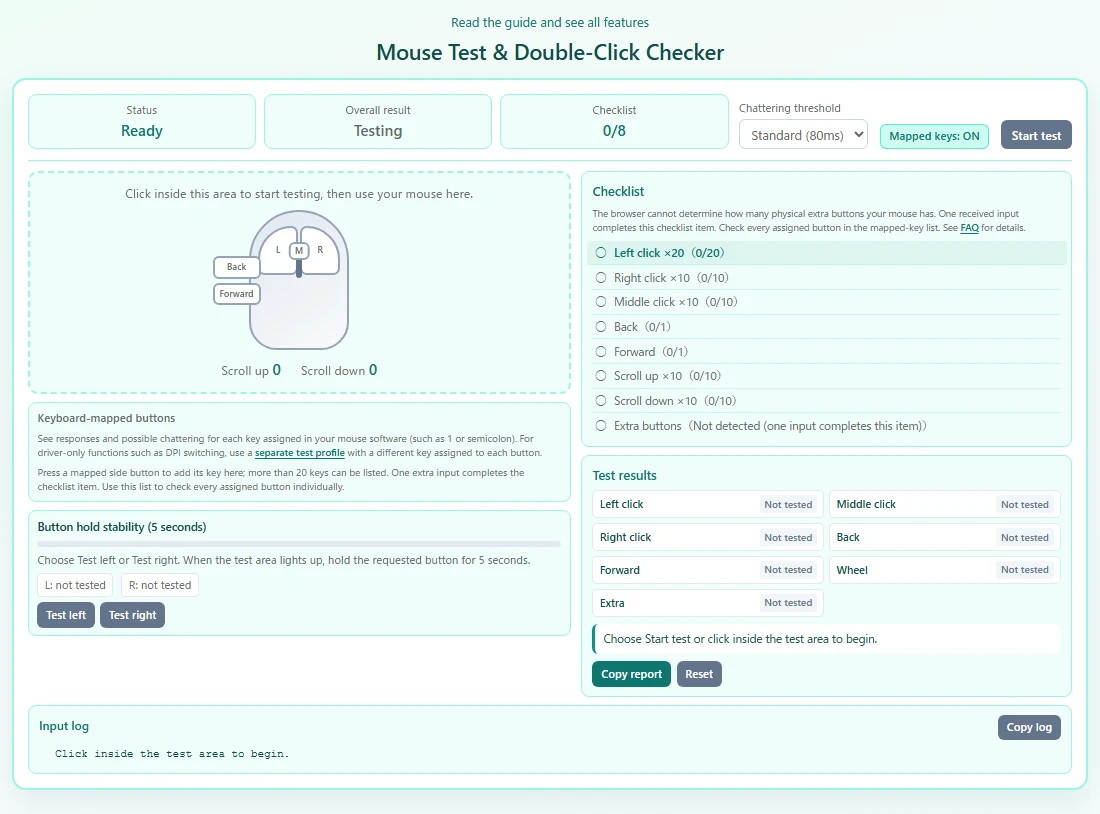
Follow the eight-item checklist, review the overall result, and copy a report or the input log.
Three steps
Open the app and choose Start test, or click inside the test area. Keep mouse actions inside that area. You can pause whenever you need.
Click each button and scroll up and down. Try assigned side-button keys. For a hold test, choose Test left or Test right, wait for the countdown, then hold the requested button for five seconds.
Review the checklist, input log, and test results. Choose Copy report or Copy log if you want to keep a record before closing or reloading the page.
Firefox may handle Back and Forward itself. Chrome and Edge can also miss special functions handled by a mouse driver. A missing input alone does not establish a fault.
Assign a different ordinary key to each button in your mouse settings software, test the assignments, then restore your usual profile.
One extra-button input completes that checklist item. To check all buttons, press every assignment and review each key’s entry.
The browser cannot count your physical buttons. This app does not measure DPI, polling rate, or sensor tracking accuracy.
After the test
The result is a record of browser input, not a repair recommendation or warranty decision.
Yes. The tool records the time between button presses and flags intervals below the selected threshold as possible chattering. The default is 80ms, with 40ms and 150ms options. Intentional fast clicks can also be flagged; this is not a hardware diagnosis.
Yes. The tool counts upward and downward inputs and flags unusually large scroll events. Compare the input log with what you actually did. Scrolling settings and the browser can affect events, and these counts are not a measurement of physical wheel notches.
Yes, when the browser receives those inputs. Standard Back and Forward buttons and extra mouse-button events can be recorded. Buttons assigned to keys appear in the keyboard-mapped list. A button that the driver handles internally may not reach the page.
The browser only exposes events it receives; it does not enumerate the physical buttons on your mouse. DPI changes, profile changes, and other driver-only actions may not produce events for this page. Check your assignments or use a separate test profile before treating a missing input as a fault.
The main button and wheel checks work with inputs received by the page. Firefox may handle Back and Forward before the page receives them. Try Chrome or Edge for those buttons, while remembering that no browser can expose every special mouse function.
Keyboard-mapped input is on by default. While testing, press a mapped mouse button to add its assigned key to the list. Modifiers, Tab, and function keys are excluded. The tool cannot distinguish a mapped mouse button from the same key pressed on your keyboard.
In your mouse settings software, create a separate profile and assign a different key to each button you want to check, such as 1, 2, 3, or semicolon. Test each assignment in the mapped-key list, then restore your normal profile. Changing a DPI-only button to a key assignment tests that assignment, not DPI.
The item checks that an extra-button input path works. The browser cannot determine your mouse’s total physical button count. Check every assigned button individually in the mapped-key list. If no extra buttons are used, this item becomes not applicable once the other seven items are complete.
It checks whether the requested left or right button stays reported as pressed during a five-second test. Wait for the three-second countdown, then press inside the highlighted area. A release is recorded as a signal interruption. Press Esc or Cancel to stop; a release can be intentional and does not prove a hardware fault.
No. Test inputs and results are processed on the current page and are not uploaded. Only manually selected language and theme preferences are saved as settings. Copying happens when you choose a copy button. Reloading or closing the page clears the test record.
No. The results describe inputs received by the browser. Compare a different connection or browser, check batteries and assignments, and review your operating-system double-click settings. The tool does not measure polling rate or DPI, repair a mouse, or decide warranty eligibility.
A useful record, without an account.
Open the app and begin with a few single clicks.
Test your mouseChecking a display too? Open Monitor Check Studio.