Indirect cursor control
Touchpad / trackpad
Move over four targets, compare click responses, and try vertical scrolling, horizontal scrolling, and the pinch-like signals your browser can receive. Use the touchpad rather than an external mouse.
Before repair or replacement
Move. Touch.
See what arrives.
Test touchpad clicks, scrolling, and cursor movement. Check direct screen touches on a compatible PC. Follow the guided steps and compare received input with how the controls feel.
Both links open the same tool. Choose your test mode before starting.
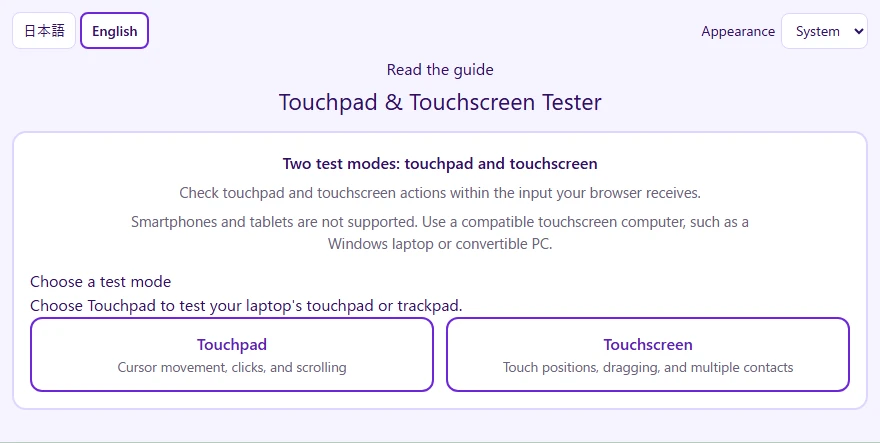
A touchpad controls a cursor indirectly. A touchscreen receives contact on the screen itself. Choose the course that matches the device you are using.
Indirect cursor control
Move over four targets, compare click responses, and try vertical scrolling, horizontal scrolling, and the pinch-like signals your browser can receive. Use the touchpad rather than an external mouse.
Direct contact on a compatible PC
Touch the screen to compare positions, taps, a one-second hold, dragging, simultaneous contacts, two-finger movement, and supported pinch input. Smartphones and tablets are not supported.
Open the tool and choose Touchpad for indirect cursor control, or Touchscreen to touch a compatible PC screen directly. You can try both modes on a computer that has both inputs.
Use your touchpad or touch your screen as instructed. Detected actions advance automatically. Use Try again to repeat the current item, or Next to continue when an input is unavailable.
Compare the received inputs with how the controls felt. Add your observations, copy the text results, or return to choose the other mode. A detection is not a hardware health certificate.
Each course has eight items. You can repeat an item or continue without a detection. The results distinguish received inputs, observations to review, and items not tested.
Follow highlighted targets, view the movement trail and received event intervals, and compare left-click, right-click, tap-response, and double-click input. These observations do not measure precise hardware latency.
Check vertical and horizontal input inside the test area. Pinch-like wheel or gesture events are browser signals, not proof of physical two-finger contact on a trackpad.
Touch nine requested positions, try a short tap and a one-second hold, then drag a finger. Multi-touch and two-finger movement show the contacts the browser receives.
Add your own observations and copy a text summary of both courses. Changing the language preserves your course, progress, and recorded results. Lift and place your fingers again if an ongoing touch was interrupted.
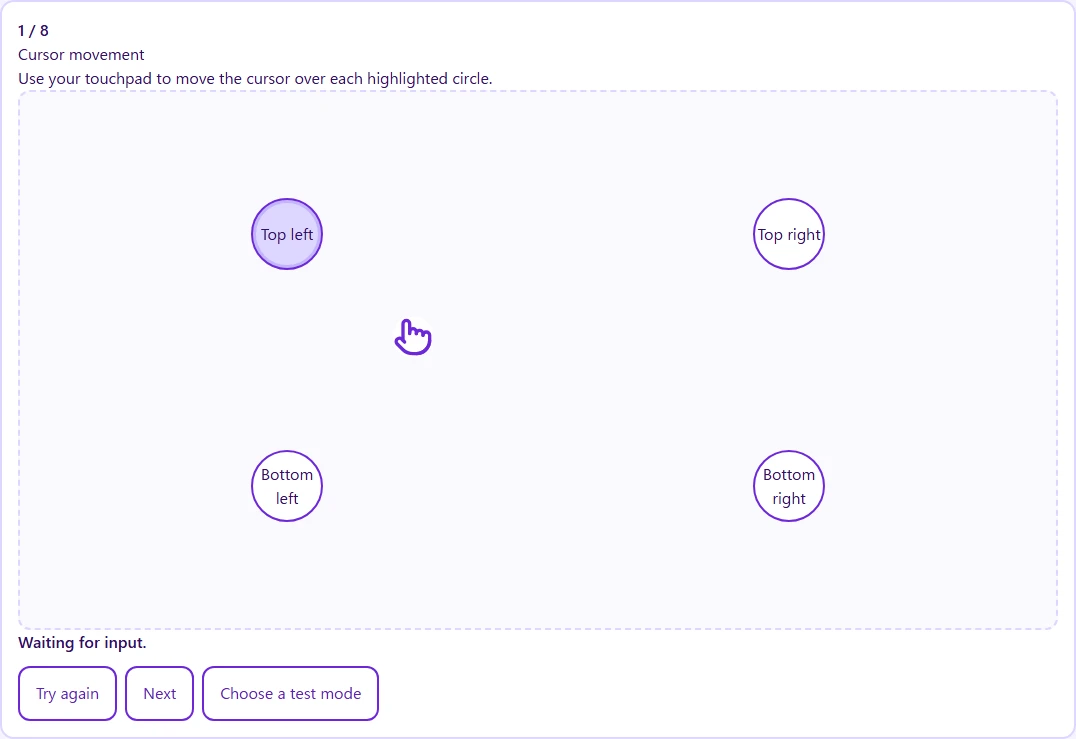
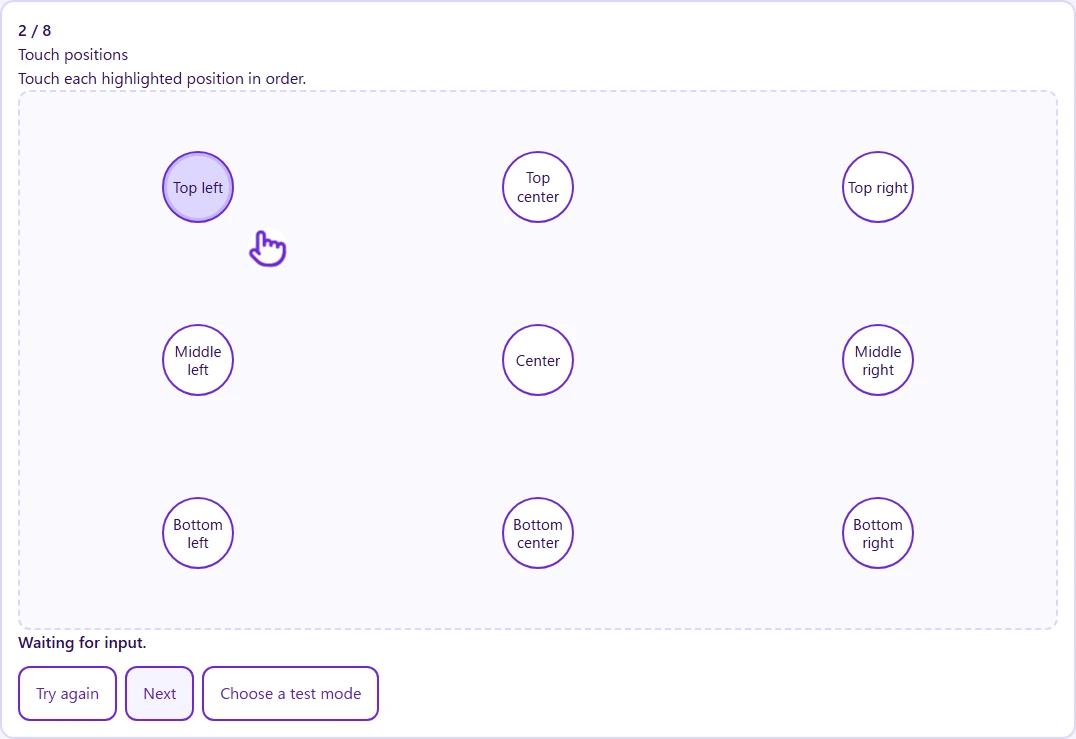
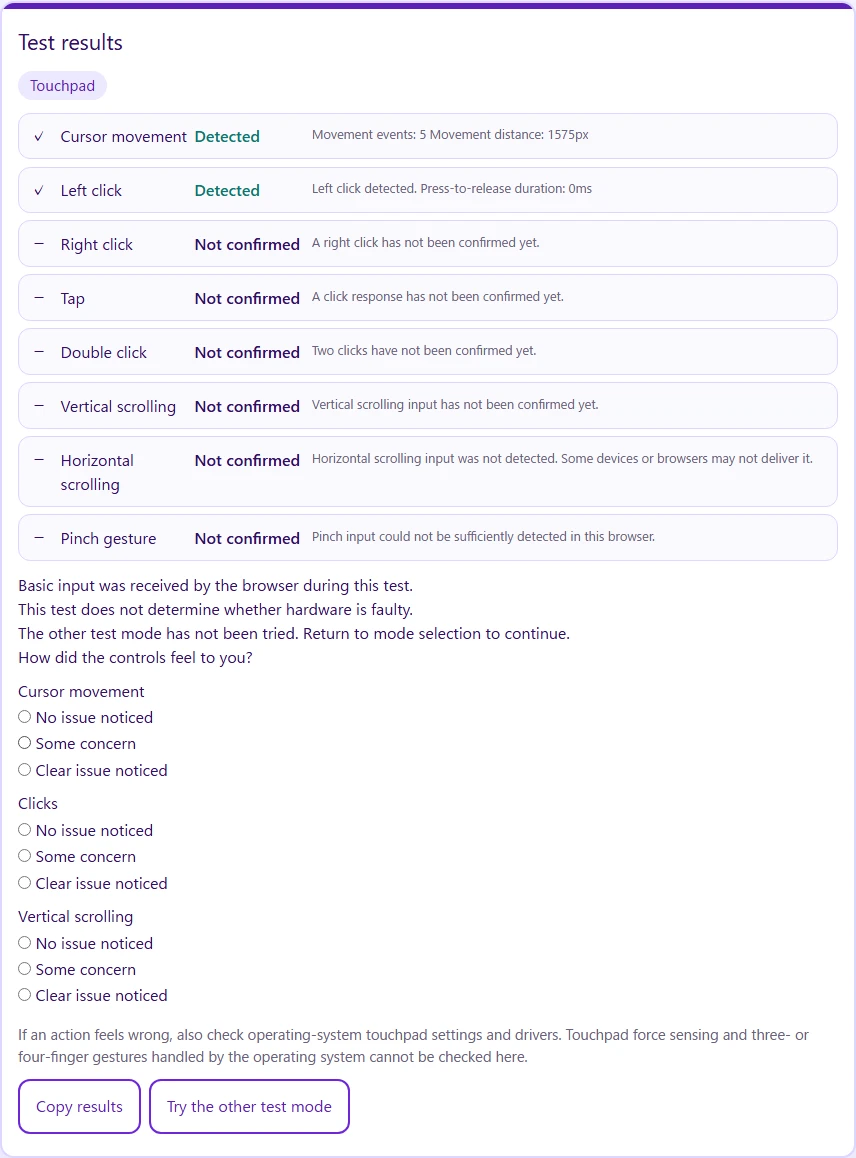
A touchpad may deliver the same event types as a mouse. Operating-system gestures may never reach a web page. Pinch input may become zooming or wheel input, and touchscreen contact tracking can be interrupted by the browser.
This tool cannot certify hardware condition, repair drivers, calibrate a screen, determine the physical input device, or confirm a hardware multi-touch limit. It does not test touchpad force sensing or three- and four-finger operating-system gestures.
Check the touchpad enable setting and your laptop's function-key controls. Review operating-system settings and any option that disables the touchpad when a mouse is connected. Compare another browser or application.
Place the cursor inside the test area. Check gesture settings and try vertical and horizontal input separately. The operating system may handle a gesture before the page receives it.
Confirm that your PC actually has a touchscreen and that the operating system recognizes it. Touch the screen directly and compare another application or browser. Missing input here alone does not establish a hardware failure.
Testing a separate mouse instead? Use the Mouse Test & Double-Click Checker for mouse buttons, wheel input, and hold checks.
Open the test on your computer, choose Touchpad, and follow eight guided items: cursor movement, left click, right click, tap response, double click, vertical scrolling, horizontal scrolling, and supported pinch input. Use the touchpad you want to check; a browser may receive a mouse and a touchpad in the same way.
Yes. This browser tool is free and requires no account or installation. Diagnostic input and results are processed on the page. You need a working browser and access to the input device; the tool cannot repair drivers or turn a disabled touchpad on.
Follow the left-click, right-click, tap, and double-click prompts. The page records click responses and available timing details. A tap can arrive as an ordinary click, so receiving a click does not independently prove that a physical tap occurred. Compare the result with your intended action.
You can check vertical and horizontal wheel input while using two-finger scrolling on your touchpad. The page records the received direction and event count and moves a visual marker inside the test area. It cannot independently verify the physical finger count or read your natural-scrolling setting.
It checks the signals the browser delivers. Touchpad mode can receive Ctrl-modified wheel input or supported gesture events; these are not proof of a physical touchpad pinch. Touchscreen mode compares the distance between received contacts. The operating system or browser may handle a gesture before the page can observe it.
No. Operating-system gestures such as application switching, desktop switching, and three- or four-finger swipes are outside this test. The touchscreen may report multiple contacts, but the highest count received by this page is not a certified hardware contact limit.
Yes, on a compatible touchscreen PC. Choose Touchscreen and touch the screen directly. The course checks touch response, nine requested positions, a short tap, touch and hold, dragging, simultaneous contacts, two-finger movement, and supported pinch input. A touchpad or mouse cannot substitute for direct screen contact in these checks.
Yes. Touchscreen mode displays the simultaneous contacts received by the browser. Try two fingers together and compare the count with your actions. Missing contacts can reflect browser or operating-system handling, and the observed maximum does not establish your screen’s hardware specification.
Check that the touchpad is enabled in operating-system settings and any laptop-specific function-key control. Place the cursor inside the test area and try the requested action. Compare another browser or application and check whether connecting an external mouse disables your touchpad. An undetected input alone does not prove a hardware fault.
Not reliably from these events. A touchpad can produce mouse-type pointer and click events. The test therefore asks you to use the touchpad and describes only the signals it receives. It does not identify the physical source from a mouse pointer type.
You can try Touchpad mode in a compatible desktop browser on a Mac. Scrolling, pinching, and event timing can differ by browser and settings. This is not a guarantee for every Mac or browser, and operating-system gestures and touchpad force sensing are not tested.
Touchscreen mode is intended for compatible PCs, including Windows touchscreen laptops and convertible computers. The browser must deliver touch or pen pointer events. If screen input is missing, check the hardware specification and operating-system recognition, then compare another application or browser.
No. The diagnostic app is intended for computers and blocks recognized smartphone and tablet environments. A responsive guide does not imply mobile diagnostic support. Use a computer with the touchpad or touchscreen you want to check.
No. It records browser-received input and your own observations. It does not repair drivers, change device settings, calibrate hardware, or determine the cause of a fault. If the symptoms persist outside the browser, compare official settings and support guidance for your computer.
Diagnostic coordinates, event details, observations, and results stay in page memory. The app does not upload them or use a translation service. Language and appearance preferences may be saved locally. Copy results writes text only when you choose that action. Ordinary page and site resource requests are separate from diagnostic input.
Choose a test mode and compare what your browser receives.
Open the touchpad and touchscreen testAlso check your mouse, keyboard, keyboard rollover, gamepad, or monitor.