My PC feels slow
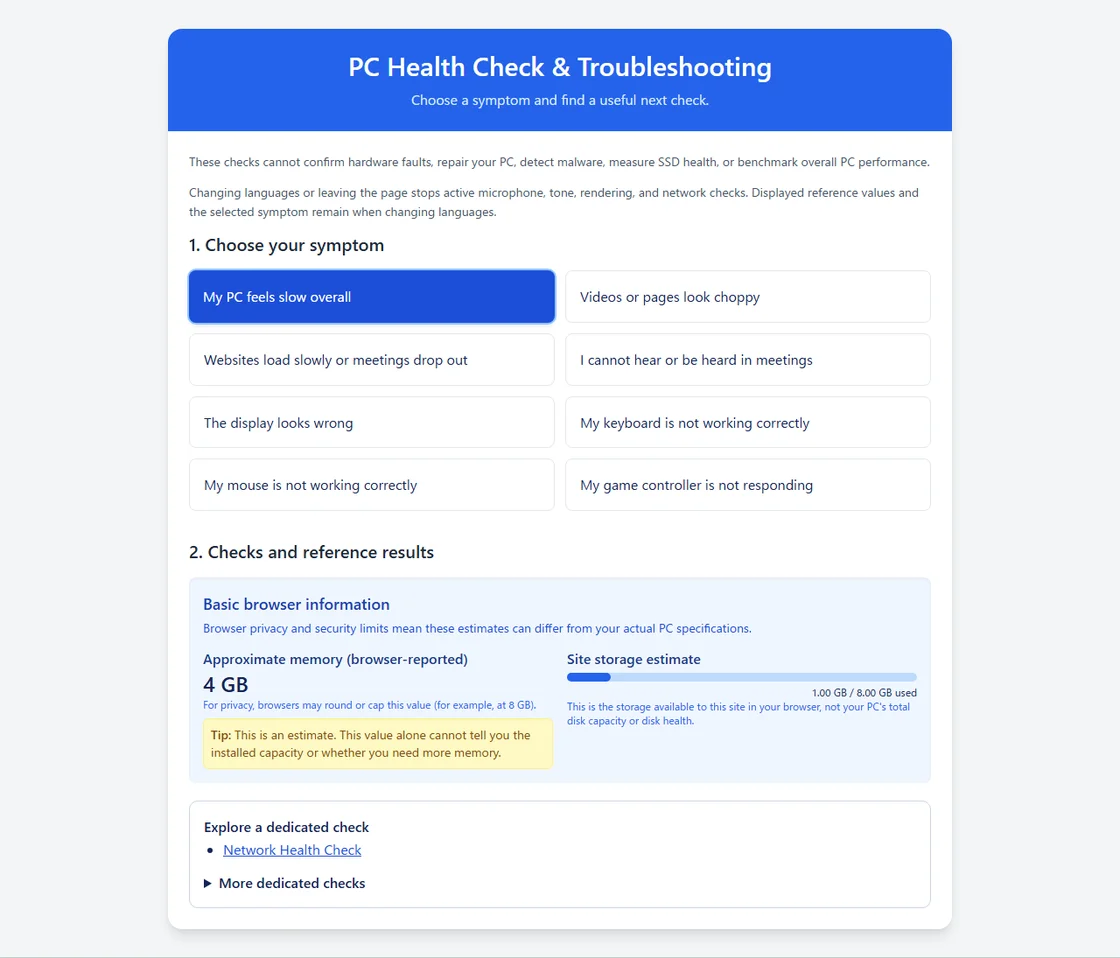
Review approximate browser-reported memory and site storage, with their limits.
Start with the symptom you notice
Something feels off.
Find your next check.
Choose a symptom, try a focused browser check, and see what the result can—and cannot—tell you. Move on to a dedicated tool when you need a closer look.
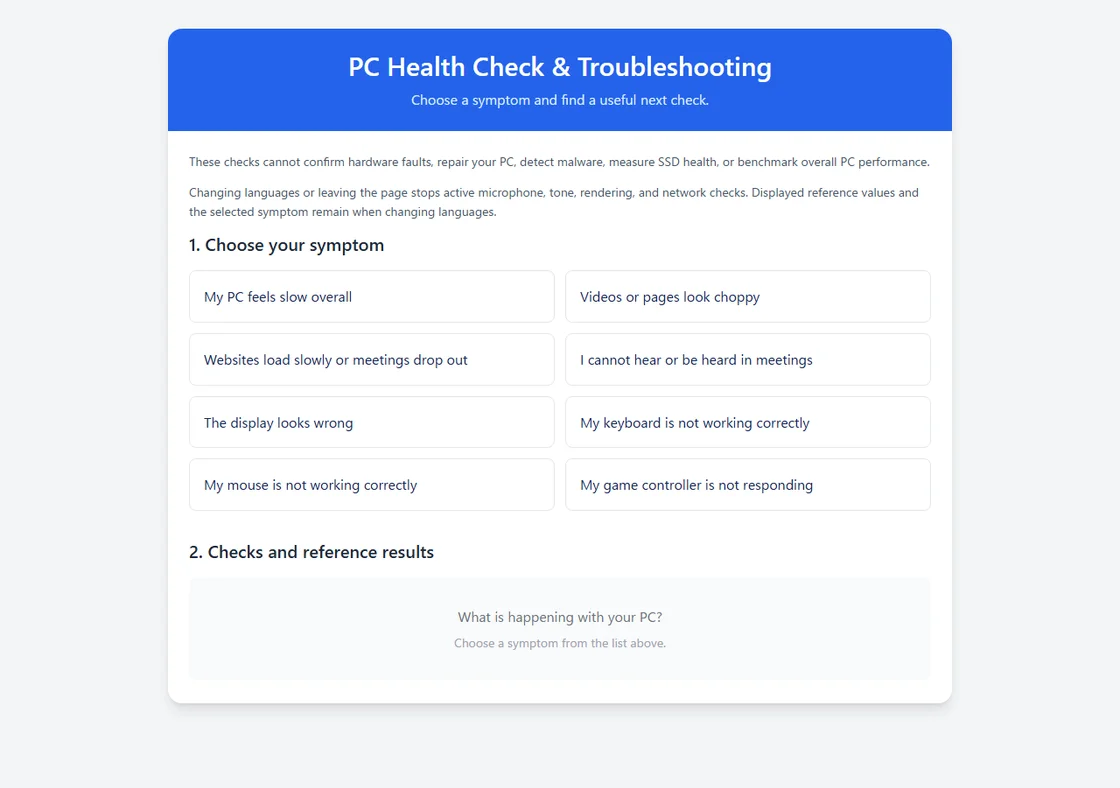
Eight symptom choices lead to existing checks and dedicated guides. You do not need to know the cause before you start.
Review approximate browser-reported memory and site storage, with their limits.
Observe the simple 3D scene, then compare browser and display settings.
Try the external HTTP reference, then continue to Network Health Check.
Try the local microphone waveform and a short speaker tone.
Cycle solid colors, then open the dedicated monitor guide.
Continue to keyboard, mouse, or game controller tools.
Open the app and select the symptom closest to your problem. Check one condition at a time, with other heavy tasks paused.
Some local information and the simple 3D scene appear when selected. Microphone access, the speaker tone, solid colors, and external HTTP measurements require their own start buttons.
Use the reference values as clues. Follow a dedicated tool for a closer input, display, or network check. If the problem persists, review device settings or seek qualified support.
See approximate, privacy-limited memory and estimated site storage. These values do not show RAM usage, total disk capacity, SSD wear, or a need to upgrade.
A simple rotating scene gives a local FPS reference. It does not benchmark a CPU or GPU, predict game performance, or diagnose hardware.
Start a local microphone waveform only after granting permission. Lower your volume before playing the 440 Hz tone, which lasts about one second.
Cycle red, green, blue, black, and white in the browser viewport to look for uneven areas. Leave with the exit button or Esc. This does not repair pixels.
Start five HEAD requests to the existing Google image URL. Compare their average and consecutive variation. This is neither ICMP ping nor a maximum-speed measurement.
Follow published English guides for a closer look at input devices, displays, or your network. Each guide explains what its tool can observe.
This tool cannot confirm or repair a hardware fault, scan for malware, inspect every process or driver, read SSD health, or certify your PC's safety. Browser support and privacy settings can make some results unavailable.
Keep an eye on the problem you actually experience. Compare one changed setting at a time, save important work, and consult device documentation or qualified support when the issue persists.
These English guides are available now.
Check dead pixels, screen uniformity, gradients, and line patterns. Record observations and save a display support report.
Check connection quality, DNS reachability, IPv4/IPv6, HTTPS response time, and basic speeds, with practical troubleshooting tips.
Test simultaneous keyboard input, compare received keys, and review your maximum count with Windows and Mac layouts.
Check touchpad clicks, scrolling, cursor movement, and supported gestures. Test touchscreen input on compatible PCs.
Check mouse buttons, unintended double-clicks, scroll wheel input, and keyboard-mapped side buttons in your browser.
Check double typing, possible stuck keys, and key hold stability. Test Windows and Mac layouts, review key events, and copy your results.
Test controller buttons, analog sticks, triggers, and possible stick drift directly in your browser.
Microphone audio is processed locally to draw a waveform. It is not recorded or uploaded. The network check contacts the existing Google image address only after you start it. The 3D library may be downloaded when you select its check; loading the site also makes normal resource requests.
Changing languages stops active microphone, tone, 3D, and HTTP work while retaining the selected symptom and displayed reference values. Changing symptoms or leaving the page releases active resources. Language and theme preferences may be saved locally; the app works when storage is blocked.
Footer share buttons contain this guide's public title and URL, with no microphone content, measurement results, or device information. Each dedicated tool has its own privacy details.
Here it means a collection of limited browser checks, organized by symptom. You can review approximate memory, site storage, a simple rendering scene, local audio, display colors, and HTTP response times. It is not a complete examination of your PC.
Yes. No account, installation, or payment is required. Opening the site and running the external HTTP check still use your internet connection and may incur normal data charges.
No. A browser cannot inspect every process, driver, hardware component, or operating-system setting. The tool helps you choose a useful next check; it cannot identify every cause or repair the problem.
No. It is an approximate value supplied by the browser, which can be rounded, capped, or unavailable for privacy reasons. It is not your current RAM usage or proof that you need a memory upgrade.
No. The estimate concerns browser storage used by and available to this site. It does not read your whole drive, free disk space, SMART data, SSD wear, or disk health.
No. It does not measure CPU performance or overall system load. Approximate memory and site storage are limited browser observations; they cannot identify every cause of slowness or determine whether you need a hardware upgrade.
It counts rendered frames in a simple browser scene. Browser settings, display timing, power mode, background work, and graphics support can affect it. It is not a GPU benchmark and does not predict video or game performance.
The browser may lack usable WebGL support, restrict graphics acceleration, or fail to load the existing rendering library. Review browser settings or compare another supported browser. This alone does not prove that your GPU is faulty.
Choose the audio symptom, select Start microphone test, and grant permission if you want to continue. A local waveform shows received audio. A moving waveform does not prove that another meeting app is using the correct microphone.
No. The app draws the waveform locally and does not record or upload microphone audio. Stop the test when finished. Changing symptoms, changing languages, or leaving the page stops access; a late permission response is also cleaned up.
The app shows an unavailable message. Check site permissions, the selected input device, and operating-system privacy settings, then retry if appropriate. Other checks remain available without microphone permission.
After you select Play test tone, the browser plays a 440 Hz sine tone for about one second. Lower your volume first. If you hear nothing, check mute, output-device selection, connections, and browser permissions. It is not a hearing test.
They help you visually look for pixels or uneven areas while cycling red, green, blue, black, and white across the browser viewport. The test cannot confirm the cause or repair pixels. Press Esc or use the exit button to finish.
No. It times five HEAD requests to the existing Google logo URL and displays their average and average consecutive difference. Browser overhead, caching behavior, server conditions, and the route can affect the result. It is not ICMP ping or a speed test.
No. It keeps the chosen symptom and displayed reference values. Active microphone, tone, rendering, and network work stop safely. Resume or start a check again only when you choose to do so.
No. It does not scan files, inspect operating-system security, detect malware, or certify safety. Use the security tools and support appropriate to your device for those tasks.
The interface adapts to smaller screens, but the symptom guidance is intended mainly for computers. Available information, microphone permissions, and rendering support vary by browser and device. An unavailable feature does not itself indicate a fault.
Use the dedicated English guides linked below and beside the related symptom. They cover keyboard chatter and rollover, mouse clicks, gamepad input, touchpads, displays, and network observations. Each tool describes its own limits.
Use a focused check to decide what to investigate next.
Open PC Health Check