Controller button test
Compare the pressed count, highlighted buttons, and input percentages with each physical press.
Before repair or replacement
Move. Press.
See the input.
Test your controller buttons, analog sticks, and triggers in your browser. Observe possible stick drift and rapid repeated inputs, then compare them with your own actions.
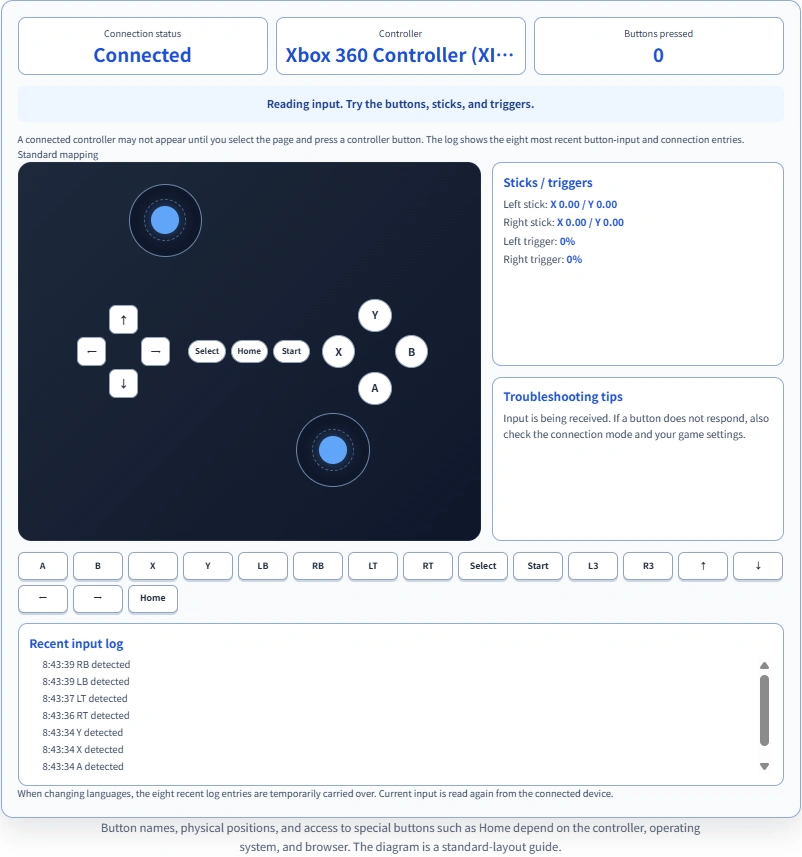
Try it here
Connect your gamepad to your computer. Select the test area, then press buttons and move the sticks and triggers to compare the inputs received by your browser.
Left stick: X 0.00 / Y 0.00
Right stick: X 0.00 / Y 0.00
Left trigger: 0%
Right trigger: 0%
Connect a controller and try its inputs. Guidance about possible drift and repeated button input will appear here.
A connected controller may not appear until you select the page and press a controller button. The log shows the eight most recent button-input and connection entries.
When changing languages, the eight recent log entries are temporarily carried over. Current input is read again from the connected device.
Button names, physical positions, and access to special buttons such as Home depend on the controller, operating system, and browser. The diagram is a standard-layout guide.
Connect a gamepad to your computer with USB or Bluetooth. Make sure the operating system recognizes it, then open this page in a supported browser.
Select the test area and press a button on the controller. Some browsers expose a connected controller only after this interaction. Keep this page visible while testing.
Press each button, move both sticks, and squeeze each trigger. Release the sticks and observe their values near center. Compare the display and recent log with what you intended to do.
One shared test for buttons, sticks, triggers, and recent input. Inputs stay on this page.
Compare the pressed count, highlighted buttons, and input percentages with each physical press.
Read signed X/Y values and watch both stick markers move. The diagram and numbers show the browser’s current input.
Leave the sticks untouched and look for persistent off-center input. Compare game deadzone settings before drawing a conclusion.
Watch left and right trigger percentages. A device may expose analog values or only on/off input.
Review possible button chattering alongside your intended actions. The existing 90ms check remains an observation, not a defect verdict.
Review the eight most recent button-input and connection entries. Current stick and trigger values are displayed separately.
Stick drift is unintended input while a stick is untouched. Leave both sticks alone and observe the readings. A small offset may fall inside a game’s deadzone, while a larger or persistent offset may affect movement or the camera.
The advice uses the current vector radius, not a timed stability test. It does not identify the internal cause or calibrate the controller. Check official settings and compare another connection or device before deciding about support or repair.
A possible rapid-repeat note means the same button was pressed again within 90ms after a release. Intentional rapid inputs, device behavior, and browser sampling can influence the result. Compare the log with what you meant to do.
Checking similar repeated inputs elsewhere? Try the mouse test or keyboard chatter test. For simultaneous keyboard combinations, use the NKRO tester.
Xbox-style, PlayStation, Nintendo Switch Pro-style, and other USB or Bluetooth gamepads may work when exposed through the Gamepad API. These are examples, not a list of models tested with physical hardware. Brand names belong to their respective owners.
The standard diagram is a guide. Physical labels, special buttons, triggers, and axis assignments can differ. A non-standard mapping is labelled on the test. The page does not automatically identify a manufacturer or configure your controller.
Check the cable or pairing and operating-system recognition. Select this page and press a controller button. Try a supported browser on HTTPS and open the page directly if an embed blocks input.
Compare the physical button with the received mapping. Some system or special buttons may be unavailable. Try a game or another browser to compare.
Keep the sticks untouched and compare values. Review game deadzones and official calibration settings if available. Seek manufacturer support when needed; this page does not repair the device.
A gamepad tester displays controller inputs received by your browser. This page shows button states, stick X/Y values, trigger percentages, and eight recent button-input or connection log entries. It helps describe symptoms but does not certify hardware condition.
Connect the controller by USB or Bluetooth, select this page, and press a controller button. Then try the buttons, both sticks, and both triggers. If it remains undetected, check operating-system recognition, the connection, and browser permissions.
Yes, you can observe input while leaving the sticks untouched. The advice changes when either stick’s current X/Y vector has a radius greater than 0.18. This is a display threshold, not a measurement of sustained drift or a hardware-fault verdict.
Unintended movement can involve off-center stick input, game deadzone settings, calibration, or other software. Small center offsets may fall inside a game’s deadzone. Compare the untouched-stick readings with what happens in the game before deciding what to do.
You can try one if your operating system and browser expose it through the Gamepad API. The diagram uses familiar standard button labels as a guide. A controller name or a standard-looking display does not confirm that every model, connection mode, or special button works.
You can try these controllers when recognized through the Gamepad API. Physical labels and available features may differ from the standard diagram. This page does not test adaptive triggers, haptics, motion sensing, battery condition, or every model-specific button.
It may work when your operating system and browser recognize the controller. A/B and X/Y positions can differ from the diagram’s labels. For non-standard mappings, use the received values as observations and compare them with your physical actions; the page does not automatically remap the device.
Check the cable or Bluetooth pairing and operating-system recognition. Select the page and press a controller button; Firefox and other browsers may wait for controller interaction. Use a supported browser on HTTPS. An embedded page can also be restricted by its permissions policy. Try another browser or controller to compare.
Yes. A button is highlighted when its pressed state is true or its reported value is above 0.45. Trigger values at standard button indices 6 and 7 are shown as percentages. Some devices report digital values or use different assignments; the display does not change your physical mapping.
Button chattering can describe unintended repeated input when you meant one press. This page notes a possible rapid repeat when a new press of the same button follows the previous press in less than 90ms. Intentional rapid presses and browser sampling can affect the log, so a flag is not proof of a faulty switch.
No. It displays received input and troubleshooting guidance. It does not update firmware, calibrate the controller, repair a switch, or change deadzones. Check official operating-system, game, or manufacturer settings, and consider support if the symptom persists.
It can, if the controller is paired and exposed by the operating system and browser. USB and Bluetooth can produce different mappings or available inputs. This page does not measure Bluetooth link quality, precise input latency, or polling rate.
No. It is a browser-input check with current visual values and a rolling eight-entry log of button presses, rapid repeats, and connections. It does not continuously log every stick movement or export a report. A hidden page pauses polling; returning reads current input again without treating held buttons as new presses.
Diagnostic input is processed on this page and is not uploaded. Only when changing languages, eight structured log entries and the active slot number use a one-use session handoff valid for 30 seconds; the receiving page removes it. Device identifiers are not included in that handoff. Ordinary page requests are separate from diagnostic input.
Connect your controller and compare what reaches the browser.
Test your controllerAlso check your monitor, mouse, keyboard, or simultaneous key input.