Try real combinations
Hold movement keys with Shift and Space, or test a shortcut you use. Add keys gradually and compare several combinations.
For the combinations you actually use
Hold the keys.
See what arrives.
Test simultaneous keyboard input in your browser. Compare the keys you press with the keys received, review your maximum count, and try the combinations you use in games or everyday work.
Try it here
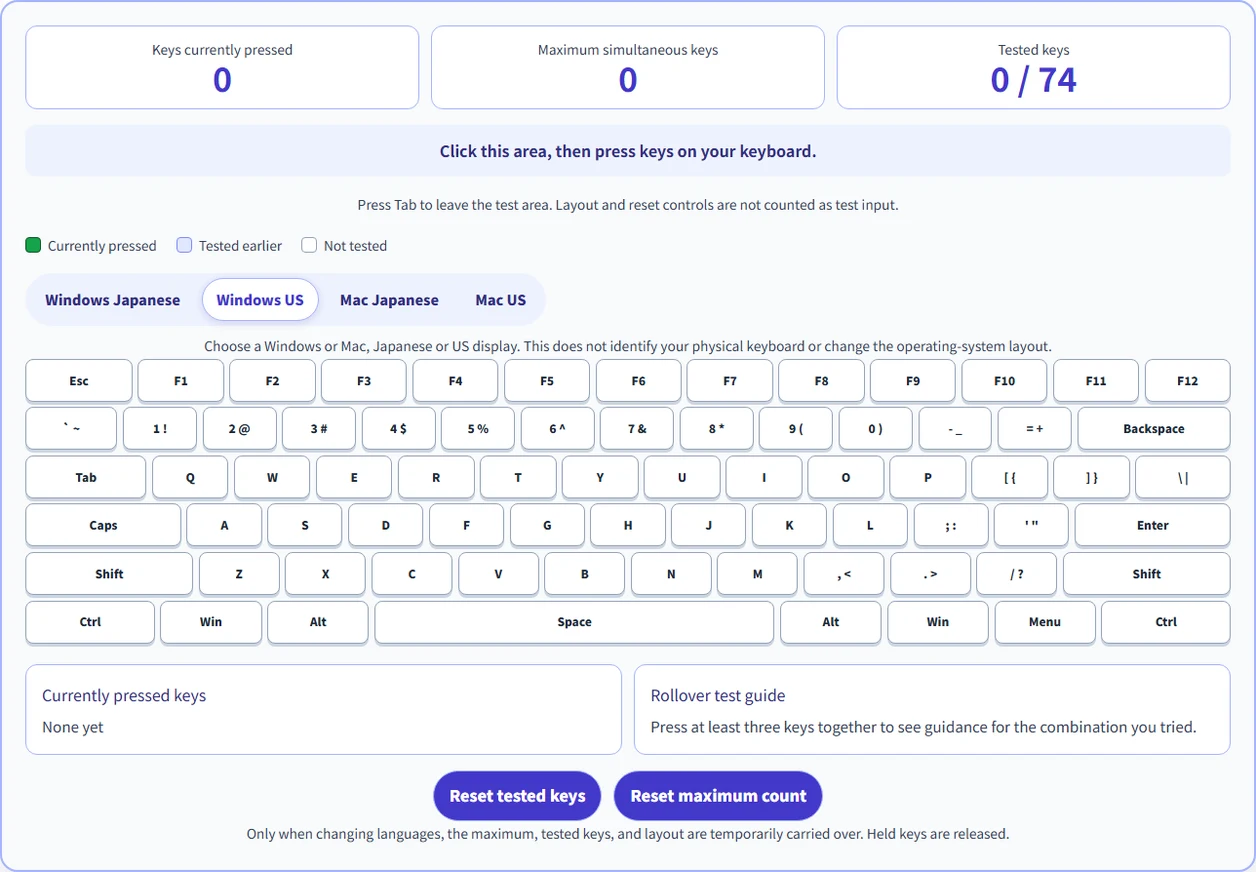
Click the keyboard test area, then press keys on your physical keyboard. Compare the inputs you intended with the keys received by the browser.
Scroll horizontally to see the keyboard. Select the test area before pressing keys.
Press Tab to leave the test area. Layout and reset controls are not counted as test input.
Choose a Windows or Mac, Japanese or US display. This does not identify your physical keyboard or change the operating-system layout.
None yet
Press at least three keys together to see guidance for the combination you tried.
Only when changing languages, the maximum, tested keys, and manually chosen layout are temporarily carried over. Held keys are released.
Change language without carrying the recordSome OS or browser keys, such as Print Screen, volume keys, and reserved shortcuts, may not reach this page.
Checking repeated or unintended keystrokes? Try the Keyboard Chatter & Double-Typing Test .
Three steps
Choose Windows Japanese, Windows US, Mac Japanese, or Mac US. Click the test area and use direct alphanumeric input rather than IME composition.
Hold the keys you actually use, such as W, A, Shift, and Space. Compare the highlighted keys and current count with your intended presses. Try different combinations.
Release the keys and review the maximum simultaneous count and tested-key history. Reset either record independently before comparing another keyboard or connection.
The current count shows distinct recognized keys held together. The maximum remains after release. Tested keys remain marked so you can check which keys you have already tried.
Hold movement keys with Shift and Space, or test a shortcut you use. Add keys gradually and compare several combinations.
Choose Windows or Mac, Japanese or US. Your explicit layout choice stays independent of the interface language.
Clear tested keys without clearing the maximum, or reset the maximum while keeping the tested-key history.
This tool cannot know which keys you intended to press. Compare the received inputs yourself; it does not automatically certify NKRO, detect every phantom key, or diagnose a hardware fault.
Registration of every key in the relevant set together. Verify the manufacturer’s definition and connection conditions.
Usually six ordinary keys, often with modifiers handled separately. This page counts modifiers too.
An unpressed phantom key appears. Compare the received keys with your own actions.
A key you intended to press does not register in a combination. Try it alone and in other combinations.
A claim about avoiding phantom inputs; coverage can be limited to selected combinations.
Click the test area, switch to direct alphanumeric input, and test the key alone. Then compare combinations or connection modes. USB and Bluetooth can behave differently. System shortcuts and some special keys may never reach the page.
Press Tab to move to the controls. Moving focus outside the test area or switching away releases the displayed held keys; the maximum and tested history remain. A physical keyboard is required, including on mobile devices.
Checking unintended repeated input? Use the Keyboard Chatter & Double-Typing Test for intervals, possible stuck keys, hold tests, and reports.
N-key rollover means a keyboard can register every key in the relevant set simultaneously. This page shows the key events your browser receives for the combinations you try. A high count alone does not certify the keyboard’s NKRO specification.
6KRO commonly describes support for six ordinary keys at once, with modifier keys often handled separately. This tester counts every distinct recognized code it receives, including modifiers. Its total is not a direct hardware 6KRO rating.
Ghosting is an unintended phantom key appearing when you did not press it. Compare the highlighted keys with your physical actions. The page cannot know which keys you intended to press, so it does not automatically detect or rule out ghosting.
Blocking is an intended key not registering during a combination. If a key does not appear, try it alone and in different combinations. Keyboard circuitry, connection mode, operating-system shortcuts, browser focus, and input settings can all affect what reaches the page.
No. Anti-ghosting generally describes measures to prevent phantom input, sometimes for selected combinations. It does not by itself promise that every combination of keys will register. Check the manufacturer’s stated scope and test the combinations you use.
Select the test area, hold several keys together, and compare your intended combination with the highlighted keys and current count. Release them, repeat with other combinations, and review the maximum. Use Reset tested keys or Reset maximum count when you want a fresh comparison.
The browser only sees events delivered to this page. Click the test area again, leave IME composition, and try a key alone. Print Screen, volume keys, system keys, and reserved shortcuts may not be delivered. A missing event alone does not prove a faulty keyboard.
Yes, with a physical keyboard and a supported browser. Choose a Windows or Mac display with Japanese or US labels. The display does not detect your keyboard or change the operating-system input layout. Reserved keys differ by platform. Without an explicit layout choice, the English page starts with Windows US. A manually selected layout is kept when changing languages.
Yes. Firmware, connection mode, input reports, the operating system, and browser behavior can affect delivered events. Compare connections using the same combinations and settings. This tool does not inspect USB descriptors or Bluetooth reports directly.
No. The maximum records the largest number of distinct recognized codes held together in the combinations you tried. It includes modifiers and does not prove that every other combination works or that ghosting is absent.
No. Held keys are counted once, and repeated keydown events do not increase the simultaneous count. Use the separate Keyboard Chatter & Double-Typing Test for repeated inputs, intervals, hold tests, and reports.
Diagnostic input is processed on this page and is not uploaded. Explicit layout preferences are saved locally. Only when you change languages, the maximum, tested key codes, and layout use a one-use session handoff valid for 30 seconds; the receiving page removes it. Held keys are released. No typed-text history is saved.
A physical keyboard is needed for simultaneous-key input; tapping the pictured keys does not simulate a hardware test. The display scrolls on narrow screens. This tester has no report export. Note your observations before closing or reloading the page.
Start with a familiar combination and compare what reaches your browser.
Test keyboard rolloverAlso check your keyboard’s repeated input, mouse, or monitor. For controller inputs, try the gamepad test.